Help
Connect Awerka to Claude
With the Awerka connector, Claude works with your projects, tasks, times, customers, orders and invoices. You ask in the chat, Claude looks it up in Awerka or enters it there. What you may see and do in Awerka stays the limit.
What Claude can do in Awerka
Claude picks the right tool itself. You just say what you need, for example:
- "Which of my tasks are due this week?"
- "Start the timer on the roof renovation Schulz."
- "How many hours did we put into project Beckmann last month?"
- "Create an invoice draft from the maintenance order."
Projects and tasks
Find, create and update projects and tasks, assign them, add comments, subtasks, acceptance criteria and test steps, plan sprints.
Time tracking
Start, pause and stop the timer, correct time entries and see totals per project, task or person.
Customers and suppliers
Look up and maintain customers and suppliers, search articles and draft purchase orders.
Orders and invoices
Create orders and their lines, bill time entries, prepare offer and invoice drafts and check e-invoices. Claude moves no money. Documents go out to your customers only if you set a recurring invoice to send automatically.
Emails and receipts
Read the emails of your mailboxes, file them on customers, projects or tasks and hand attachments to the receipt inbox.
Team and help
Write in the team chat, find colleagues and get told where in Awerka something is done.
What you need
- An Awerka account on one of these plans: Solo, Starter, Business. The trial includes it too. Pricing
- A Claude account: claude.ai in the browser, the Claude app for desktop or phone, or Claude Code.
Set up
Claude asks for this address when you add Awerka:
claude.ai and the Claude apps
- Open Claude in the browser or in the desktop app and go to Settings, then Connectors.
- Click "Add custom connector".
- Enter "Awerka" as the name and paste the server address.
- Click "Connect". Claude opens Awerka: sign in, choose what Claude may do and agree.
On your phone the connector is there as soon as you have added it in the browser or desktop app. In a Claude Team or Enterprise plan an owner adds the connector once, then everyone connects with their own Awerka login.
Claude Code
-
Run this in your terminal:
claude mcp add --transport http awerka https://awerka.de/mcp - Start Claude Code, type /mcp, choose "awerka" and then "Authenticate".
- Your browser opens Awerka: sign in, choose what Claude Code may do and agree.
Signed in to Awerka, you find these steps with your address to copy under Settings, Connect to Claude.
Rights and scopes
When you connect, you choose what Claude may do. You can change it at any time by connecting again.
| Choice | Technical name | What it allows |
|---|---|---|
| Read data | awerka.read |
See projects, tasks, customers, documents and everything else you can see in Awerka. |
| Create and change | awerka.write |
Create and edit records, for example tasks, time entries or offers. |
| Delete and cancel | awerka.destructive |
Delete records and cancel documents. Only allow this if you need it. |
- Claude sees and changes only what you may see and change in Awerka.
- Tools that only read are marked as such, tools that change or delete data too, so Claude can ask you before it uses them.
- If a request needs more than you allowed, Claude says so and nothing happens. Connect again and allow more if you want it.
- You get an email for every new connection.
Privacy
Claude receives only the results of the tools it calls for you, for example a task list. Awerka stores the connection itself and a log of the calls with time, tool and result code, without what was sent or returned, for 90 days. Your conversations with Claude never reach Awerka. Anthropic handles what Claude receives under its own terms and privacy policy. Details are in our privacy policy.
Claude can also report to the Awerka team on its own that a tool or field was missing or that it noticed a possible security weakness. Such a report holds a short description written by Claude, you and your company and the time, and is meant to hold nothing from your conversation. We use it only to improve Awerka and fix weaknesses, see privacy policy § 9a.
Disconnect
- In Awerka under Connected apps: open the app and click "Disconnect". Claude loses access at once.
- In Claude under Settings, Connectors: disconnect or remove Awerka.
- Awerka also ends every connection of a person when the password is changed, the second factor is removed or the account is deactivated. Admins can disconnect the apps of everyone in the company.
Help and support
Something does not work or you miss a function? Write to info@awerka.de or use the contact form. We answer on working days.
Awerka for Mobile
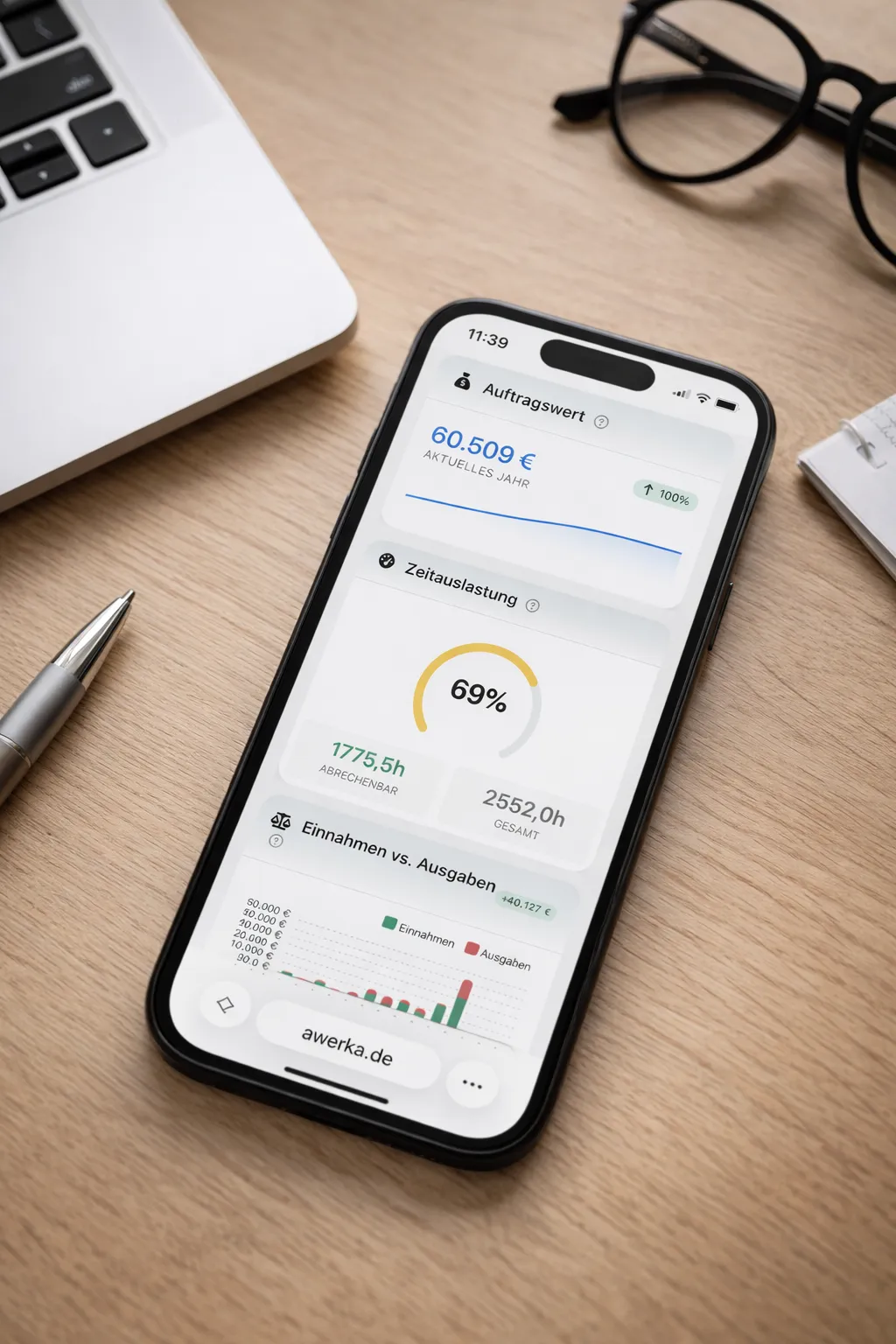
Manage your business on the go. Access customers, projects, and time tracking from anywhere with our mobile app.